How to Repurpose Content in Wemify
How repurposing works in Wemify
Repurposing in Wemify has two parts:
- Create for: in the draft brief you switch on every channel the idea should reach.
- Rewrite for other channels: after you save the first version, Wemify writes a version per channel, lets you review them and then publishes, schedules, sends them for approval or saves them as drafts.
Each version keeps the same idea but changes length, hook and tone for the platform. You stay in control: nothing goes out before you have reviewed it.
1. Start from one idea
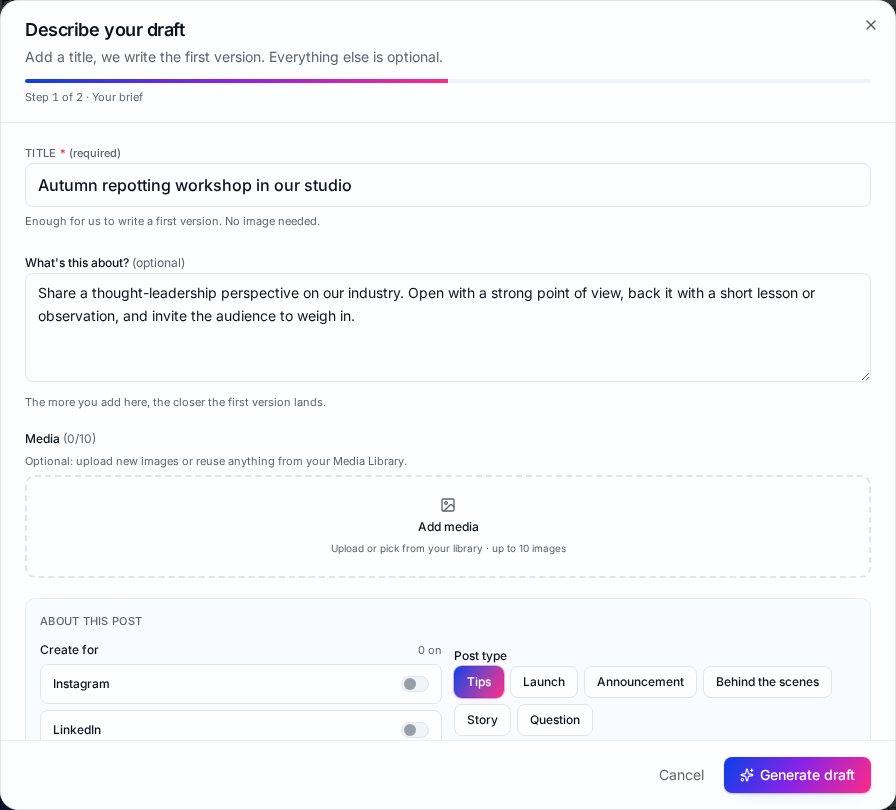
Click New draft on the Posts page and pick a starting point. Give the post a clear title and describe the idea in What's this about?. Concrete details (a date, a place, an offer) carry over well to every channel.
New to drafts? How to Create Your First Post in Wemify walks through the brief field by field.
2. Select the channels
Under Create for, switch on each channel. The counter shows how many are on. In this example the idea is going to Instagram, LinkedIn and Facebook.
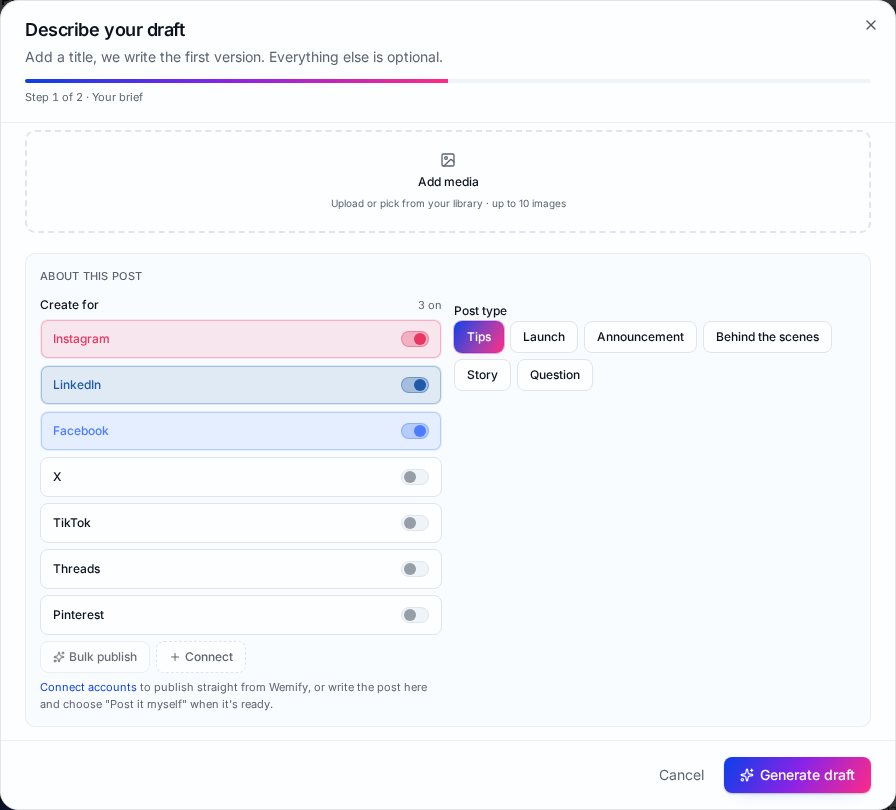
Pick the post type that fits the idea best. It shapes the structure of every version, so a Tips post stays a tips post on all channels.
3. Review the first version
Click Generate draft. Wemify writes the first version and shows it next to a live preview with a word and character count, so you can see whether it fits the platform.
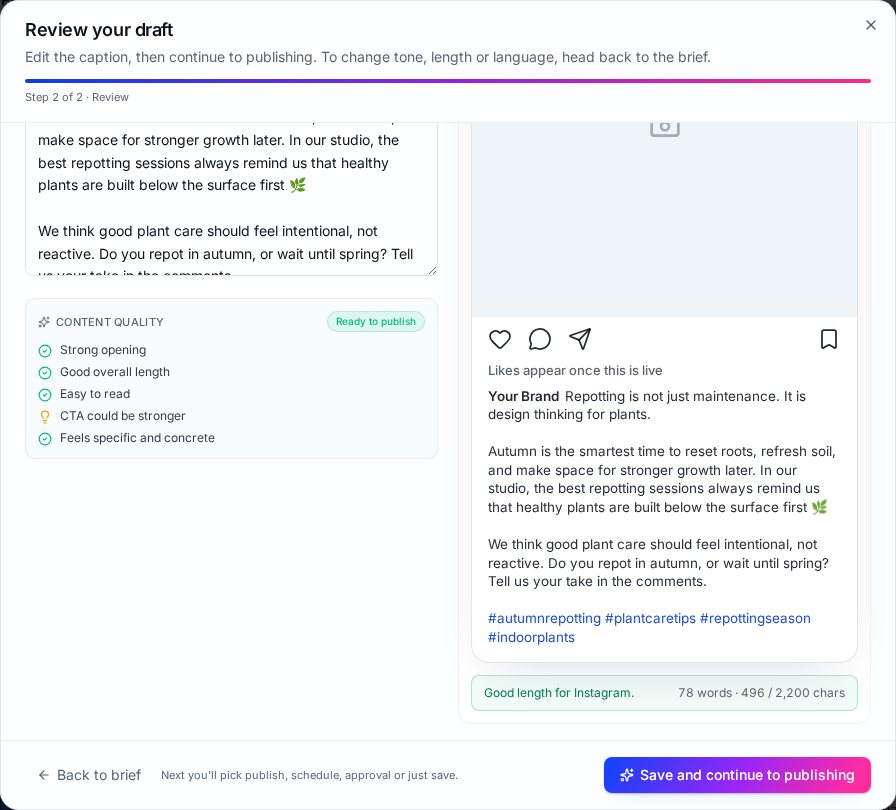
Edit this version until the core message is right. Every other version is built from it, so time spent here pays off on every channel. Then click Save and continue to publishing.
4. Rewrite for other channels
Wemify now opens Rewrite for other channels, a short three-step flow: Generate, Review drafts, Done. You pick the platforms and what should happen with the posts: Publish now, Schedule, Send for approval or Save drafts.
In Review drafts you see each version side by side and can edit any of them before you confirm.
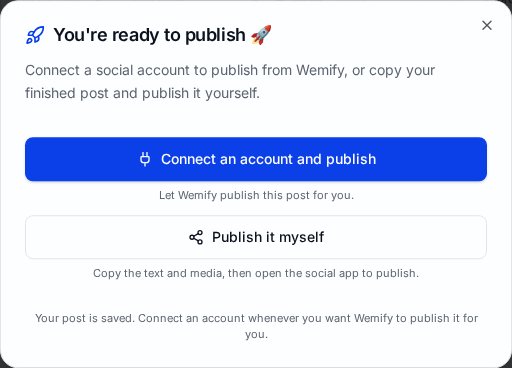
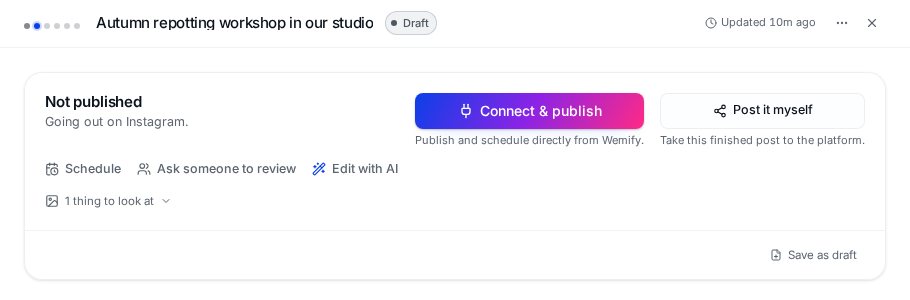
Rewrite for other channels works with your connected accounts. If none are connected yet, Wemify says so and offers Connect account or Post it myself. With Post it myself you copy the text and media and publish in each social app.
5. Polish a single version
Open any version from the Posts page to fine-tune it. Use Edit with AI for quick edits like Punch up the hook or Tighten & shorten (1 Creative Credit each), or edit the text yourself.
6. Continue to scheduling
Once each version is ready, schedule them so they don't all land at once. A day or two between channels often works better than the same hour everywhere. Next step: How to Schedule Social Media Content in Wemify.
Want to see how repurposing fits the rest of your process? Read How to Manage Your Content Workflow in Wemify.
Frequently asked questions
Does Wemify just copy the same text to every channel?
No. Each channel gets its own version with a length, hook and tone that suit that platform. You can review and edit every version.
Which channels can I repurpose to?
Create for lists Instagram, LinkedIn, Facebook, X, TikTok, Threads and Pinterest. Rewrite for other channels uses the accounts you have connected.
Can I repurpose without connecting accounts?
You can write and edit drafts for any channel. Rewriting into separate channel versions and publishing from Wemify need connected accounts; otherwise use Post it myself.
Write once, fit every channel
Try Wemify free for 14 days and turn your next idea into posts for each platform.
Continue reading
How to Repurpose Content Across Social Media
A practical workflow for turning one piece of content into posts that fit LinkedIn, Instagram, Facebook and X, with examples, a checklist and common mistakes.
ReadHow to Create Your First Post in Wemify
A step-by-step guide to creating your first post in Wemify: write a short brief, pick your channels, review the AI draft and publish or schedule it.
ReadHow to Schedule Social Media Content in Wemify
Schedule posts in Wemify: open a draft, use the suggested time or pick your own date and time, then follow it in the calendar and publishing queue.
Read