How to Approve Content in Wemify
1. Prepare the draft
Finish the caption, image and channel before you ask for a review. Reviewers should judge a post that is ready to go, not a rough idea. Open the draft from the Posts page.
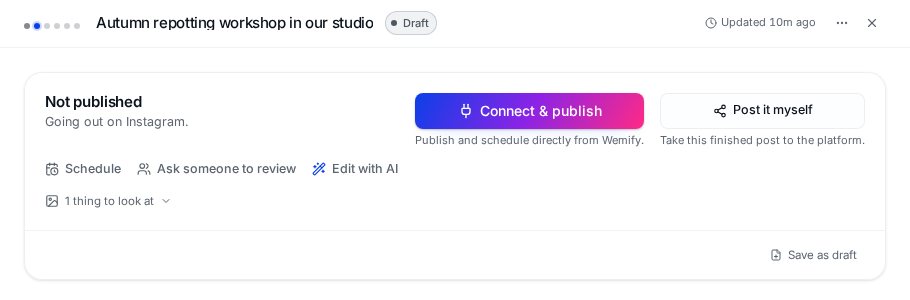
2. Ask someone to review
Click Ask someone to review in the action bar. A Send draft for approval panel opens. Your reviewer can approve or request changes, and you're notified when they respond.
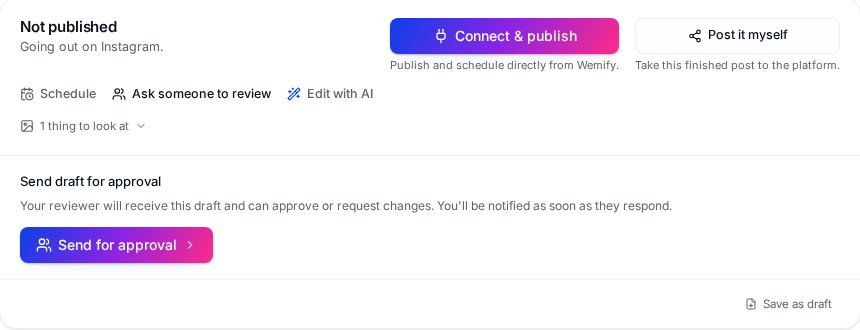
Click Send for approval to choose a reviewer.
3. Choose the reviewer
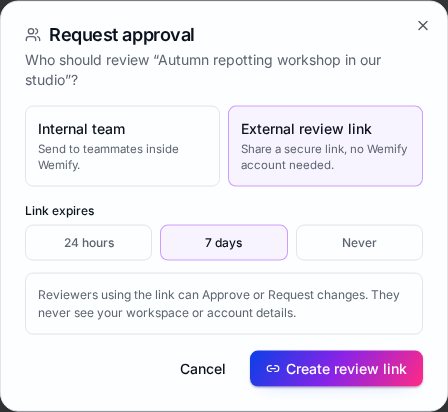
- Internal team: pick one or more teammates in the workspace. Invite people under Settings → Members first if the list is empty.
- External review link: create a secure link for a client, manager or partner without a Wemify account. Choose whether the link expires after 24 hours, 7 days or Never, then click Create review link and share it.
People using the link can only approve or request changes. They never see your workspace or account details.
4. What the reviewer sees
An external reviewer opens the link and sees the post as it will look on the platform, with two buttons: Approve and Request changes.
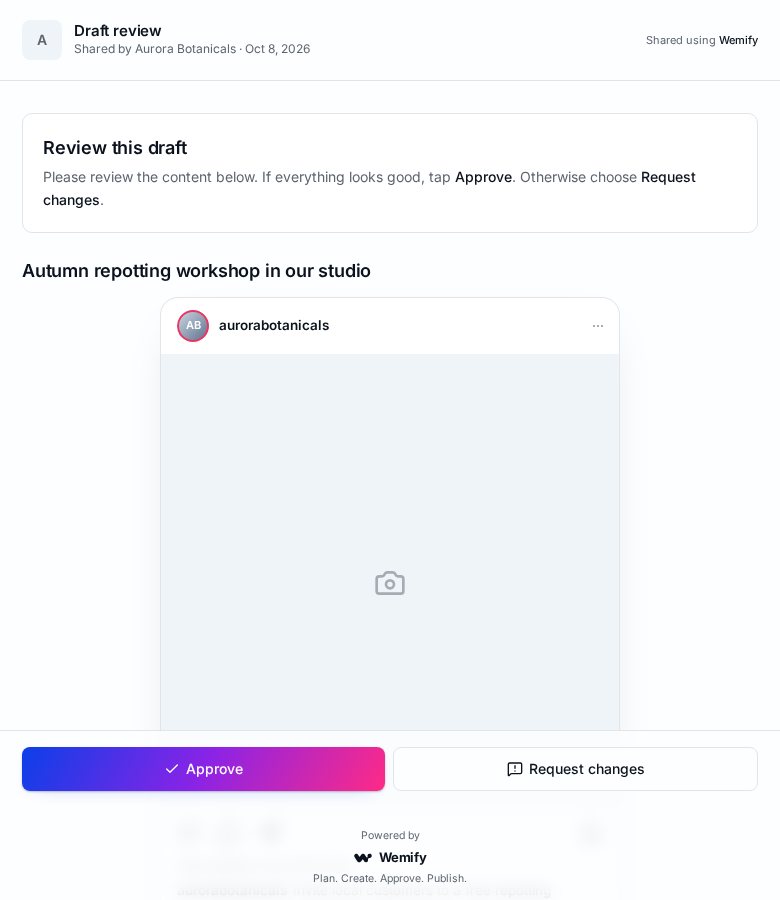
Internal reviewers find the post on the Review posts page in Wemify.
5. Follow the review
Open Create posts → Review posts. The top shows how many posts are Pending, Need changes and are Approved. The review queue lists each post with its channel, status and how long it has waited.
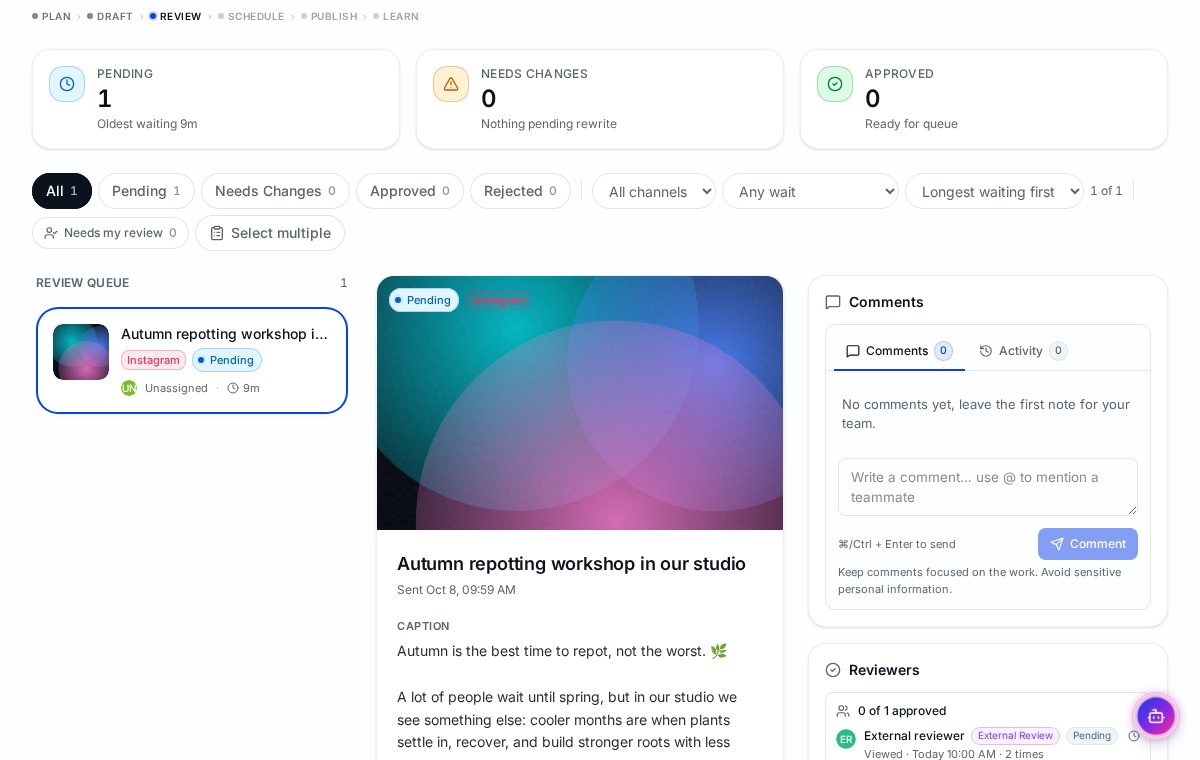
Click a post to see the preview, write Comments (use @ to mention a teammate), see the Activity history and check each reviewer's status. You can also filter by status or channel, or show only posts that need your review.
On the Posts page, the Approval tab counts posts waiting for a decision.
6. From approved to scheduled
Once approved, the post counts under Approved and is ready for the publishing queue. If the reviewer asked for changes, edit the draft and send it again.
Then schedule it: How to Schedule Social Media Content in Wemify. To see how approvals fit with planning and publishing, read How to Manage Your Content Workflow in Wemify.
Frequently asked questions
Does the external reviewer need a Wemify account?
No. They open the secure link and can approve or request changes without signing in.
Can I stop a review link from working?
Choose 24 hours or 7 days when you create it so the link expires automatically.
Where do I see what the reviewer said?
On the Review posts page, under Comments and Activity for that post.
Get sign-off without email threads
Try Wemify free for 14 days and send your next post for approval in two clicks.
Continue reading
How to Create a Content Approval Workflow
A step-by-step content approval workflow for small teams: who reviews what, how feedback is captured, and how to avoid approval by Slack thread.
ReadHow to Schedule Social Media Content in Wemify
Schedule posts in Wemify: open a draft, use the suggested time or pick your own date and time, then follow it in the calendar and publishing queue.
ReadHow to Manage Your Content Workflow in Wemify
The full Wemify workflow in one place: plan, create, adapt, approve, schedule and publish, with links to a detailed tutorial for each step.
Read